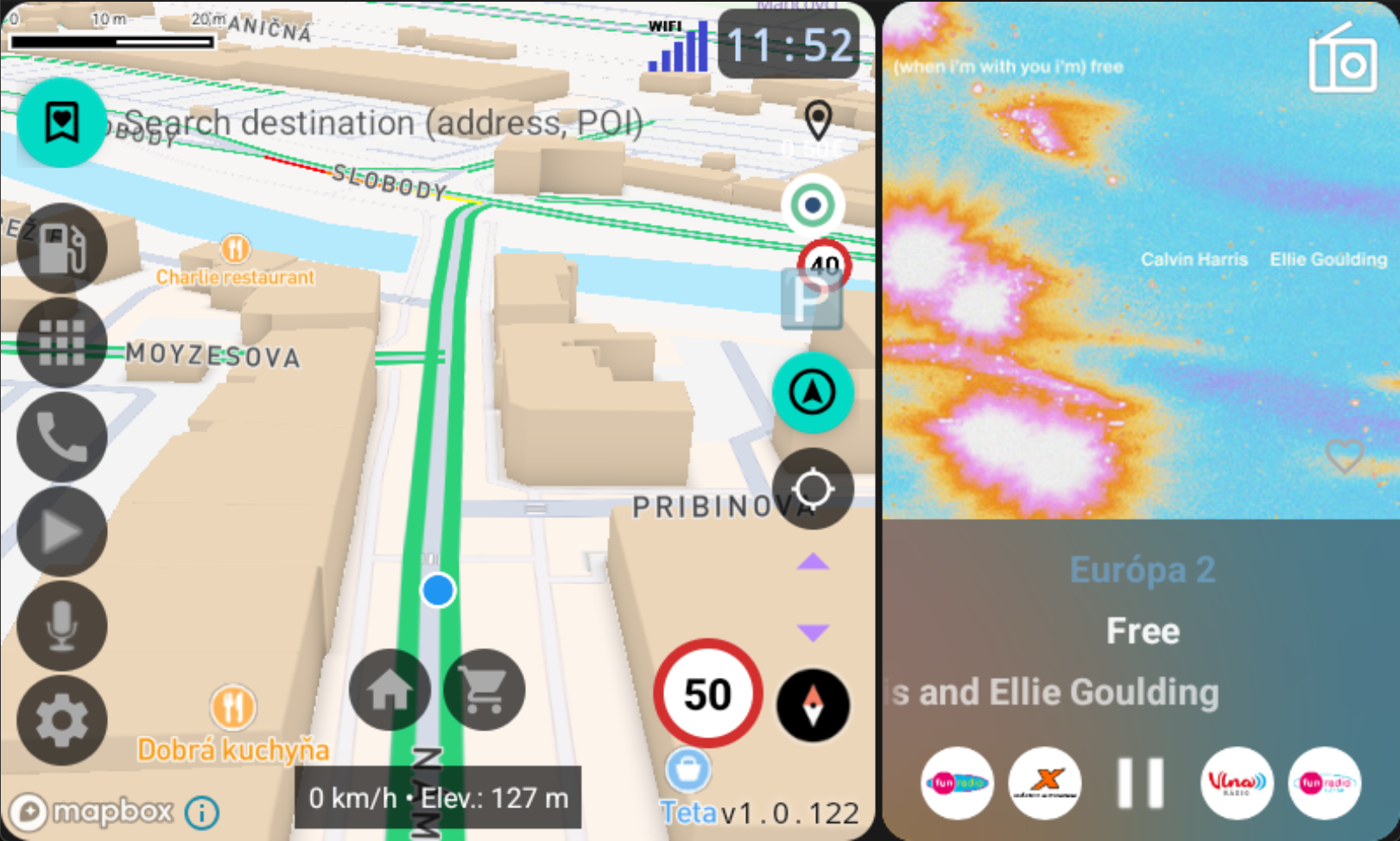
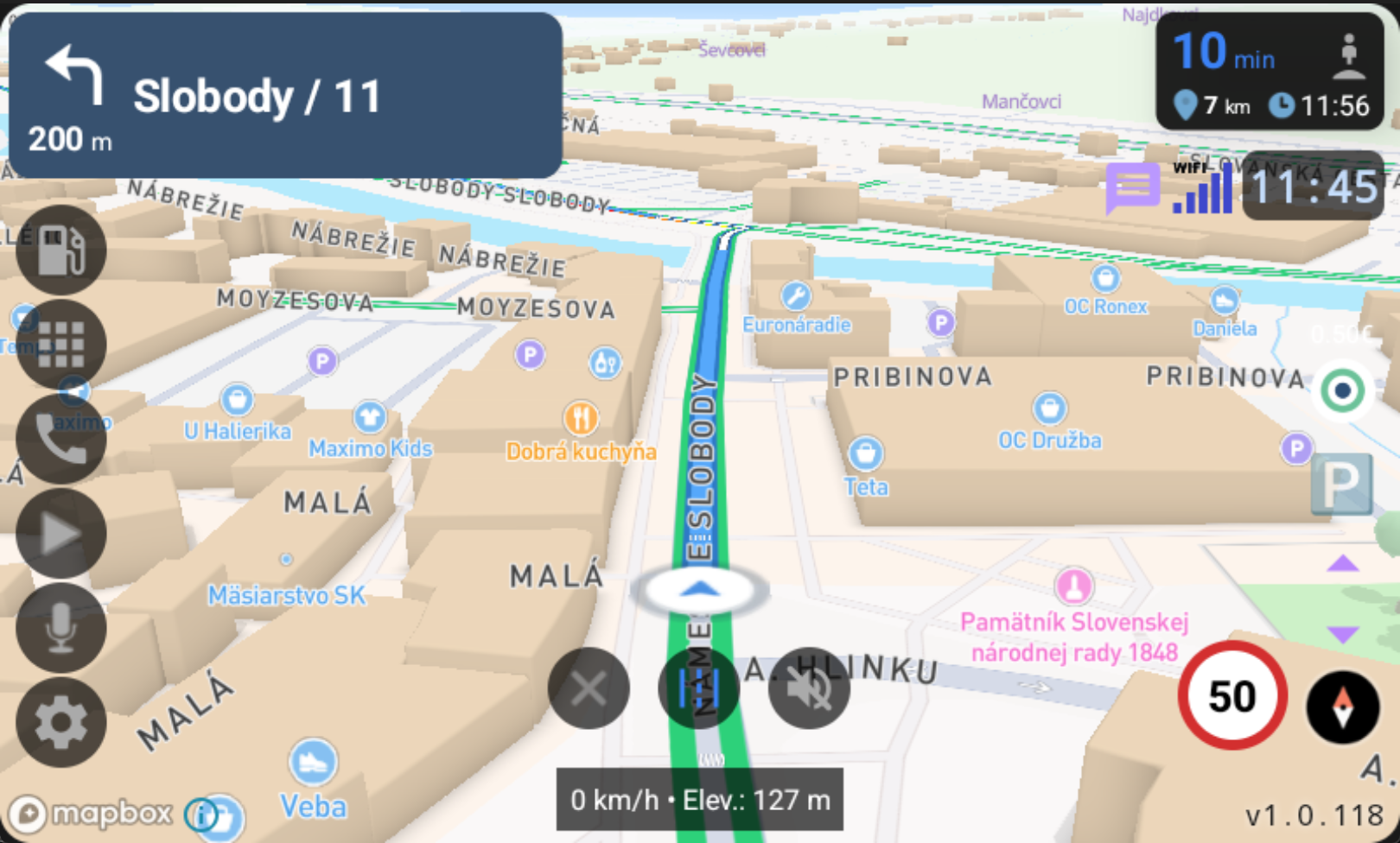
Map + Music View
Hover over the numbered markers to see what each element does. Detailed descriptions below.

Shows the next maneuver — turn direction, distance, and street name. Appears during active navigation.
Opens the panel where you can manage your saved favorite places — home, work, and custom locations.
Displays the current speed limit for the road you are on. Visual warning when you exceed the limit.
The main navigation action button. Starts turn-by-turn navigation to your selected destination with voice guidance.
Centers the map on your current GPS position. Useful after manually panning the map to quickly return to your location.
Vertical column of buttons on the left side: Apps, Music, Contacts, Charging Stations, Voice Command, and Settings.
AI-powered buttons that predict where you want to go based on your driving history. Appear automatically when the app learns your patterns.
Shows remaining distance and estimated time of arrival during active navigation.
Displays the album cover of the currently playing track. Behavior depends on screen orientation.
Shows the current song name and artist. Also serves as a quick selector for your favorite stations or playlists.
Standard media controls for the currently playing music or radio.
Bottom strip showing a summary of traffic incidents on your route — road closures, congestion, accidents, and roadworks.
Switch between different music apps — Spotify, YouTube Music, World Radio, MP3 player, Radia.sk, and any other active media app.
Shows the current map orientation. Toggles between north-up and direction-of-travel view.
The 3D map with buildings, roads, and points of interest. Supports gestures for panning, zooming, and tilting.
Shows your current GPS location and driving direction on the map.
Filter points of interest displayed on the map — restaurants, gas stations, parking, and more.
Control panel for active navigation with options to manage your route and guidance preferences.
Shows the current mobile signal strength and network type in the status bar.
Shows incoming notifications from your phone directly on the navigation screen so you don't have to look away.